Your first route with PitStopper, start to finish
Chapters
About this video
Three and a half minutes from an empty start page to a file on your bike computer, all in the real app: draw the route, set when you will start so every stop shows the time you will get there, find the water and the cafés, check the climbs, and send it to your Garmin.
It also points out the stop list, the Tools menu and the right-click menu, for everything else.
Transcript
New to PitStopper? Let's plan a ride from start to finish: draw the route, find water and cafés along it, and send it to a Garmin.
In PitStopper, you can import a route you already have, or create one from scratch. Today we'll create one from scratch: a loop round the east of Madeira. On the start page, choose Plan a route.
Click the map for your start, then again for your finish. For a loop, put them side by side.
To steer the route, click where it should go, and choose Add a via point here.
Up into the hills, out to Caniçal, and back along the coast.
Seventy-seven kilometres, and over three thousand metres of climbing. Madeira is steep.
Before anything else, set when you'll start. Open Advanced options, and enter the date and time: eight in the morning, on the twentieth of March.
Now every stop will show the time you'll get there. Press Done routing, and give your route a name.
Now for the stops. First, choose how far from the route to look. A hundred metres keeps them close.
Open Water, and tick Drinking Water. Thirty-five of them, right beside the route.
Then look for the gaps. In the POI graph, from the POI menu, the red bands are stretches with no water: twenty-four kilometres from Funchal, right up the first climb, and sixteen more later on. Fill your bottles before you set off.
Click a tap to check it. This fountain near Machico is the last water before an eighteen-kilometre gap, and you pass it twice, out and back.
Then Food and Drink, and Cafés.
Click a café to see how far off the route it is, and when you'll get there: twenty-four minutes past nine. Star the ones you'd like to stop at.
Tourigalo, near Machico, is open when you arrive, at five to eleven.
Open the elevation chart from the corner. The percentages mark each climb.
Point anywhere for the distance, the height, and the time you'll be there.
Drag across a stretch for its own figures. The first climb is thirteen kilometres, with almost a thousand metres up.
With the cafés added, the POI graph plots every stop by how far along the route it is, and how far off it, left or right.
Your starred cafés are ringed in gold, and the times along the bottom show when you'll pass.
List and Manage lists every stop, and warns you about ten that may be shut when you get there.
The Tools menu holds the rest: planning stops for you, hazards, surfaces, the weather, and more.
And right-click the map or the route for still more.
When you're ready, open Export, then Export a file, and choose FIT, Garmin's course format.
Garmin drops stops that sit far from the route, so PitStopper moves them onto it for you.
Import the file into Garmin Connect as a course and send it to your device, or copy it to the device's New Files folder. Your stops come up as you ride.
PitStopper. Know your stops before you go.
Where to find this in PitStopper
- Planning and editing a route - the planner, via points and the start time
- Finding places along your route - water, cafés, the stop list and the POI graph
- Elevation and terrain - the chart, its climbs and a selected stretch
- Import and export GPX, FIT and KML files - the FIT export
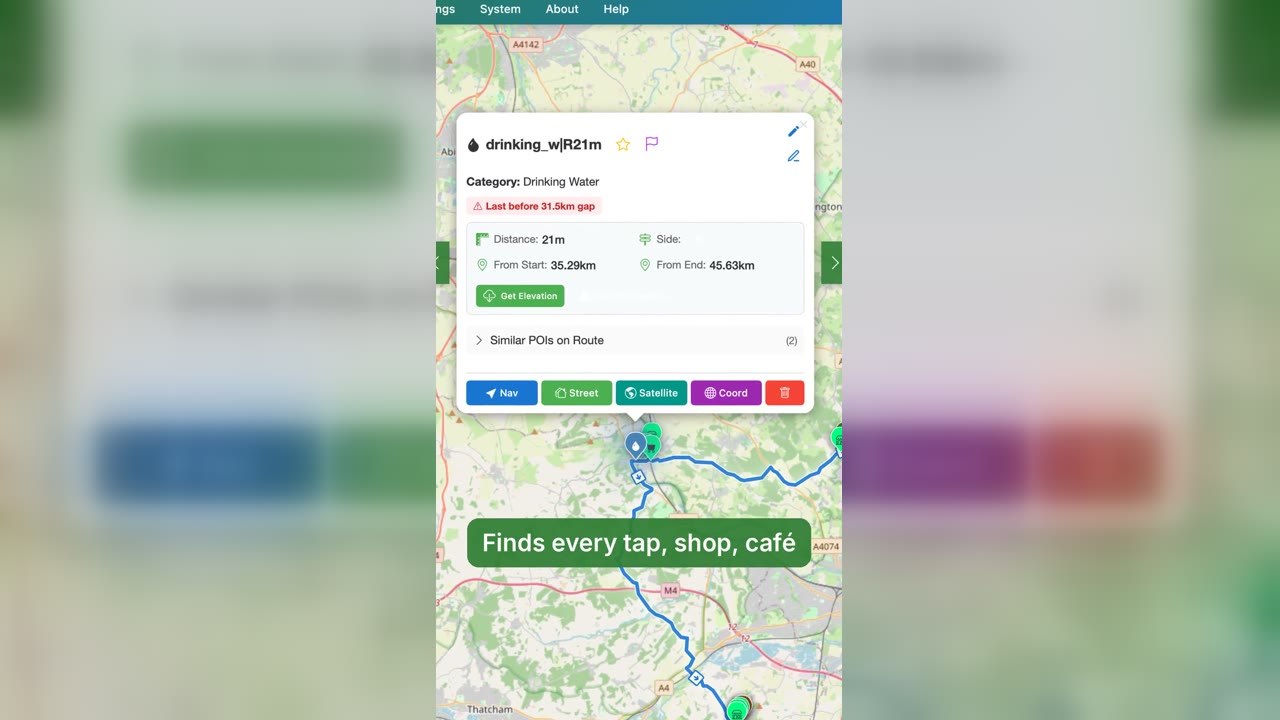 PitStopper in 60 seconds: plan, find water, ride
1:03
PitStopper in 60 seconds: plan, find water, ride
1:03
 PitStopper trailer: know your stops before you go
0:57
PitStopper trailer: know your stops before you go
0:57
 Eight things PitStopper does that most route planners leave out
1:28
Eight things PitStopper does that most route planners leave out
1:28
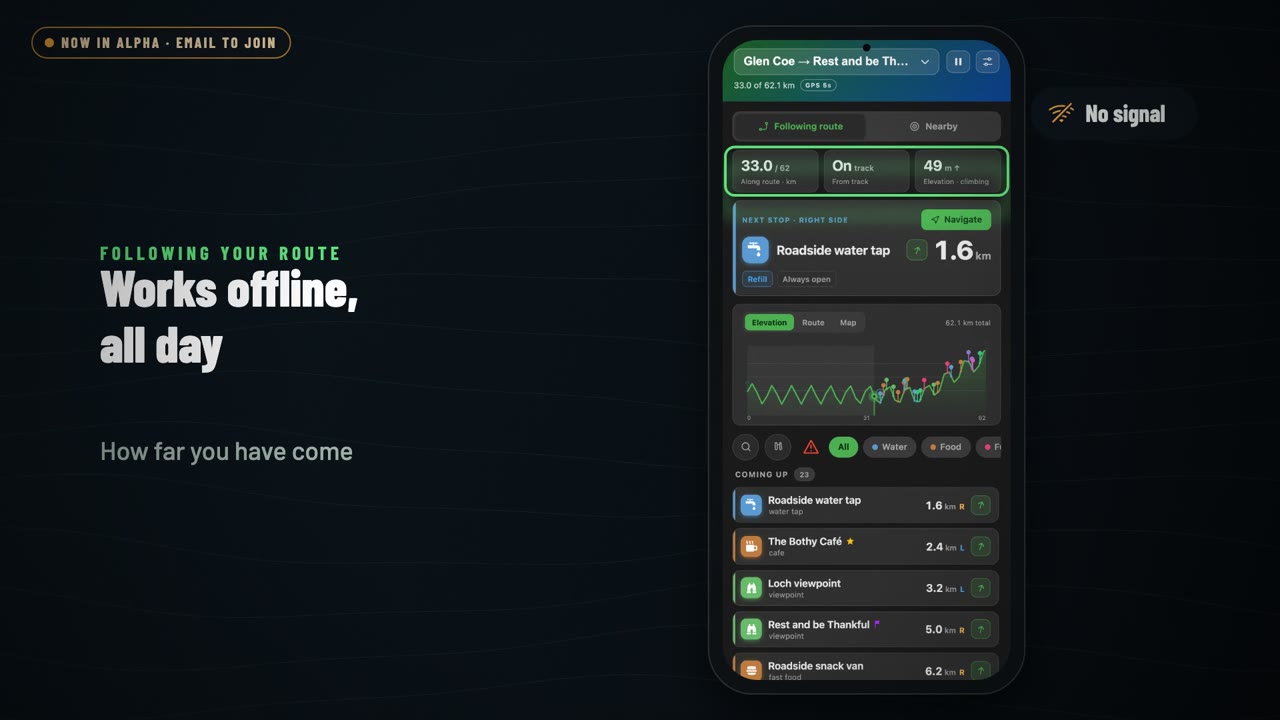 PitStopper On-the-go: a tour of the Android app
1:36
PitStopper On-the-go: a tour of the Android app
1:36
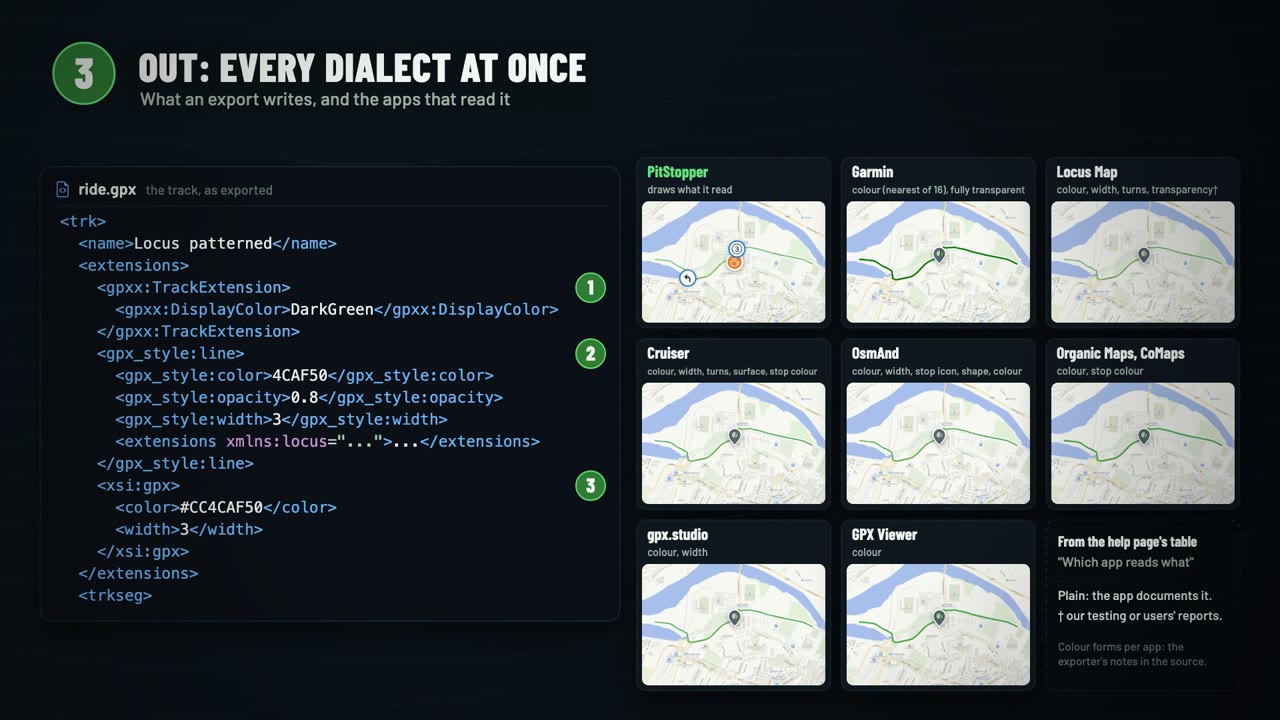 What's inside a GPX file, and how PitStopper reads the extras
3:00
What's inside a GPX file, and how PitStopper reads the extras
3:00